How to Organize YouTube: Playlists, Watch Later and More
YouTube is easier to use on purpose when it's organized. A simple system with playlists, Watch Later, a cleaner subscription list and quieter notifications.
The BOSLA AI team4 min read
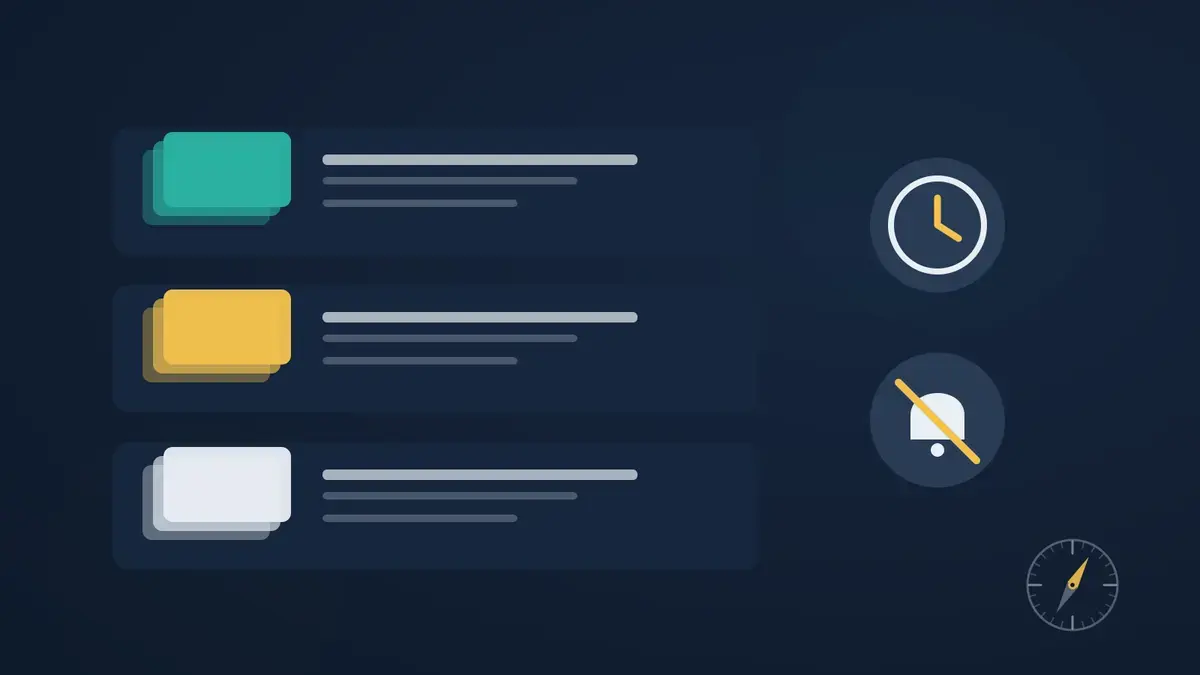
You saved a great video last month. Now you can't find it. Your subscriptions list has 300 channels, half of which you no longer watch, and your phone buzzes every time any of them uploads.
YouTube can feel messy because it's built to show you what's next, not to help you find what you chose. The good news: a few built-in features can turn it into something closer to a personal library. This guide shows you a simple system you can set up in about 20 minutes.
Why organizing helps
When YouTube is organized, you start from your own choices: a playlist, a saved video, a channel you trust. When it isn't, you start from the Home feed and whatever it decides to show you. A small amount of structure makes it much easier to use YouTube on purpose. (For the feed itself, see our guide to customizing your YouTube feed.)
1. Build playlists around what you care about
Playlists are the backbone of an organized YouTube.
To create one: under any video, select Save, then Create new playlist. Give it a name, choose who can see it, and create it. From then on, Save lets you add videos to it in one tap.
A few ideas that work well:
- One playlist per goal: "Arabic grammar," "Python basics," "Home workouts."
- One per project: "Kitchen renovation ideas," "Trip to Alexandria."
- A "best of" list: videos you'd happily rewatch or recommend.
Keep playlists private if they're just for you; YouTube says only you can view a private playlist. You can reorder videos by opening the playlist and dragging them up or down, which is useful for courses you want to follow in order.
2. Use Watch Later as an inbox, not a graveyard
Watch Later is YouTube's built-in "save for later" list. It's useful when something interesting appears while you're busy: save it instead of opening it.
The trick is to treat it like an inbox:
- Save freely during the week.
- Once a week, open Watch Later.
- For each video: watch it, move it into a playlist, or remove it.
Without that weekly review, Watch Later quietly grows into hundreds of videos you'll never get to.
3. Clean up your subscriptions
Your subscriptions shape your Subscriptions tab and influence your recommendations. Over time, the list fills up with channels you've outgrown.
- Open your list of subscriptions and go through it once.
- Unsubscribe from channels you haven't watched in months.
- Keep the ones you'd genuinely miss.
A shorter list makes the Subscriptions tab a useful place to start, instead of a second endless feed.
4. Quiet the notifications
Every channel you subscribe to has a notification bell with three settings, according to YouTube's help page:
- All: notifications for the channel's uploads and live streams.
- Personalized: occasional notifications that YouTube chooses based on signals like your watch history.
- None: no notifications from that channel.
A simple rule: set the bell to All only for the few channels you never want to miss, and to None for the rest. You'll still see their videos in your Subscriptions tab when you choose to look. For broader control, open Settings → Notifications and turn off the types you don't need.
5. Make your starting point intentional
Once you have playlists and a clean subscription list, change where you start:
- Bookmark your Subscriptions page or a key playlist instead of the homepage.
- On your phone, open YouTube from the You tab, where your playlists and Watch Later live.
This small change means you begin each session with your own choices.
A 20-minute organizing session
- Create three playlists for your current goals or interests.
- Move the best videos from Watch Later into them, and clear out the rest.
- Unsubscribe from ten channels you no longer watch.
- Set notification bells to All for no more than five channels, None for the rest.
- Bookmark your Subscriptions page or your most-used playlist.
- Put a weekly 10-minute "Watch Later review" in your calendar.
FAQ
Can other people see my playlists? Only if you make them visible. Private playlists can only be viewed by you.
Does unsubscribing affect my recommendations? Subscriptions are one of the signals YouTube uses, so a cleaner list can help your recommendations reflect what you watch now. Our article on how YouTube recommendations work explains more.
Is there a limit to Watch Later? The real limit is your time. A weekly review keeps it useful.
Your YouTube, your library
A few playlists, a weekly Watch Later review, a shorter subscription list and quieter notifications can make YouTube feel less like a stream and more like a library you built.
We're building BOSLA AI to make that kind of control simpler across the web: you decide what you want more of and less of, and it helps shape your experience around that. Learn what BOSLA AI is, or create a free account and try it, free in beta.
Updated October 24, 2026